> For the complete documentation index, see [llms.txt](https://docs.quantvue.io/llms.txt). Markdown versions of documentation pages are available by appending `.md` to page URLs; this page is available as [Markdown](https://docs.quantvue.io/our-tools/automated-trading-strategies/qscalper-strategy.md).
# "Qscalper" Strategy
### Features include:
* Multiple types of scalping for different markets
* A multitude of settings to adjust to your preferences
* Build in compatibility with our QuantVue Automated Trading Suite software
### Time Settings
Time Settings in Qscalper
The top selection will force it to only open during the trading time string. The bottom will force trades to close at the end of the listed times. Refer to the [**TradingView documentation**](https://www.tradingview.com/pine-script-docs/en/v5/concepts/Sessions.html) for the time string construction.
### Trade Types
Trade Type Settings
The **regular and fast scalpers** will work off the Qwave and Qline, and scalp as the price action moves in to them to look for a bounce.
The regular and fast scalpers also have a few extra settings:
Lower settings
Upper settings
The ***upper settings*** consist of the **box lookback**, **strength coefficient**, and **proximity coefficient**. Broadly, they control when the scalper takes a trade. The box lookback will tell the algo how many Renko boxes to look backwards at to determine if the strength coefficient is valid.
If the strength coefficient is 70 (percent), and the box lookback is 4, then that means 70% of the 4 boxes (therefore 3 boxes) must be moving in the *same direction* (into the resistance/support) in order to trigger a trade.
The proximity coefficient simply says where the line for support/resistance actually is, in a small boundary around the actual level on Qwave/Qline. You can enable a visual display of this boundary.
The ***lower settings*** consist of risk/reward for both regular and fast, as well as their selections for valid trades. The regular scalper also has a few extra settings. Use **Volume to Find Entries** will cause it to use the **Qcvd** indicator, and the **Volume Length** corresponds to the **Fast Length** in the **Qcvd**.
**Dynamic Closes** enables a different style of closing that may work better in some markets, and trailing stop distance works with this.
Further, scrolling to the bottom of the page reveals the **Qwave** and **Qline** settings which will change where they're plotted on the screen and thusly where the scalper trades.
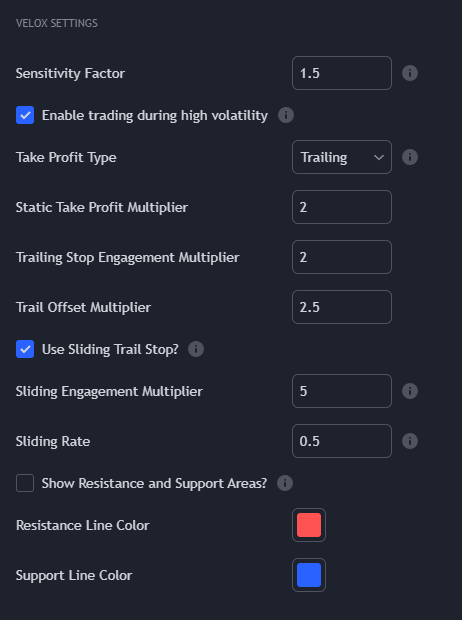
Next, **Velox** has completely different settings.
Upper settings
Lower settings
The **upper settings** for **Velox** consist of the labelled **Hard Stop** and **Hard Stop Multiplier**, as well as the **Higher Box Size** filter. Note that all 3 of these also work for **MB/CVD**.
The **Higher Box Size** filter will cause a Qcloud overlaid on a box size *double that of the number placed in the box* to act as confluence for trade openings.
The **lower settings** for **Velox** include the following. The **Sensitivity Factor** will adjust how many trades it finds. The **Take Profit Type** can be adjusted to either **Static** or **Trailing Stop**. The **Trailing Stop Engagement Multiplier** determines how far into profit it needs to move to enable the stop, where the **Offset Multiplier** determines how far the stop trails behind the current price.
**Velox** is equipped with a **sliding trail stop** which will tighten the stop as it moves further from the opening price. The **Engagement Multiplier** does the same as above, with the **rate** causing it to be tightened faster or slower.
Lastly, you can show the support and resistance areas that Velox trades off of.
Finally, we have **MB/CVD.**
MB/CVD lower settings
The **upper settings** for MB/CVD are the same as Velox. The MB/CVD takes a trade when it finds confluence between the CVD and Moneyball.
The **lower settings** consist of a static profit target - **Profit Multiplier** - and the same Moneyball settings you find in the Moneyball indicator.